> ## Documentation Index
> Fetch the complete documentation index at: https://docs.newly.app/llms.txt
> Use this file to discover all available pages before exploring further.
# Preview troubleshooting
> Fixes for the most common preview issues: web preview stuck, iOS showing the welcome screen, stale bundle, and more.
# Preview troubleshooting
Most preview issues fall into one of these patterns. Pick the section that matches what you're seeing.
* *Web preview stuck on "Loading preview\..."* → [Web preview stuck](#web-preview-stuck-on-loading-preview)
* *Code changes don't show up on a real device or in TestFlight* → [Changes don't show on device or TestFlight](#changes-dont-show-on-device-or-testflight)
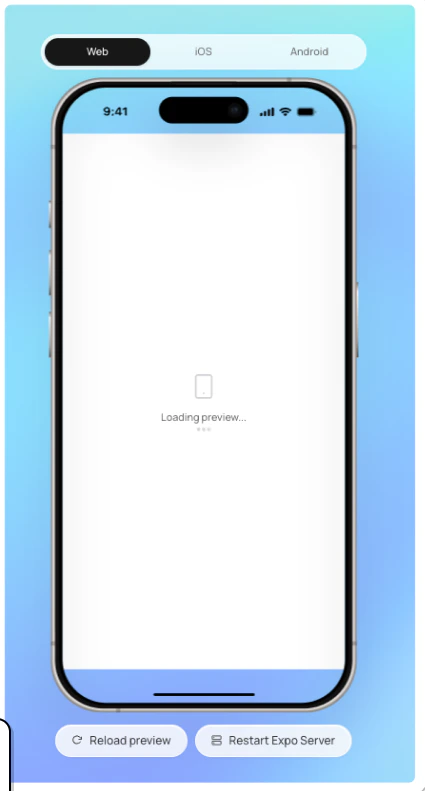
## Web preview stuck on "Loading preview\..."
If your web preview is stuck on "Loading preview\..." and never loads, it's likely because your app uses a native-only package like **OneSignal (push notifications)** that doesn't work in the browser-based web preview.
 The fix is to build your app for a **native simulator** (iOS or Android) instead of using the web preview.
## How to Fix It
Click the **iOS** or **Android** tab at the top of the preview panel. You'll see a **Build simulator** button at the bottom.
The fix is to build your app for a **native simulator** (iOS or Android) instead of using the web preview.
## How to Fix It
Click the **iOS** or **Android** tab at the top of the preview panel. You'll see a **Build simulator** button at the bottom.
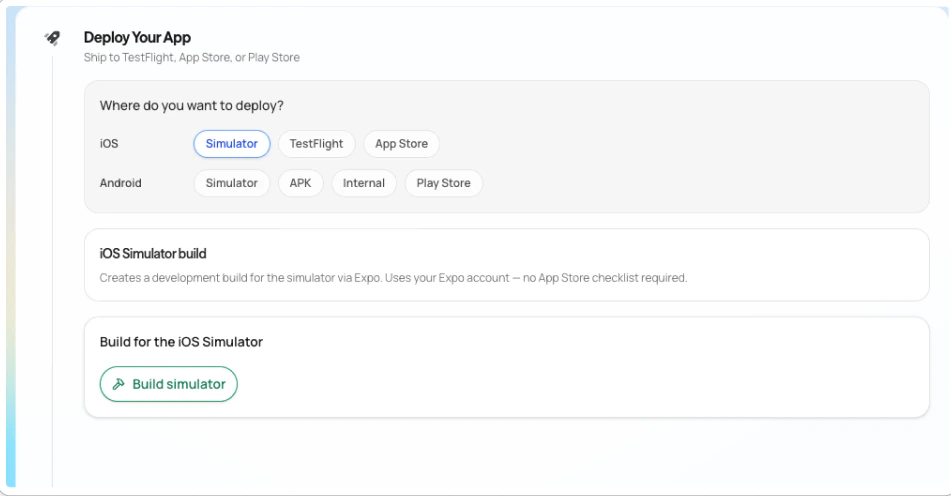
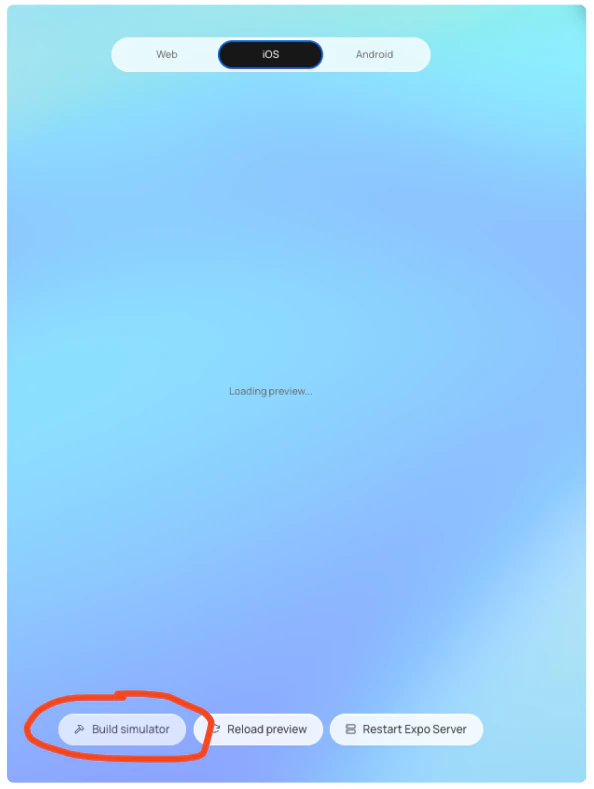 Click **Build simulator**. In the Deploy panel that opens, make sure **Simulator** is selected, then click **Build simulator**.
 The build process requires an Expo account. When prompted for your email or username, create a free account at [expo.dev](https://expo.dev/) and enter your credentials.
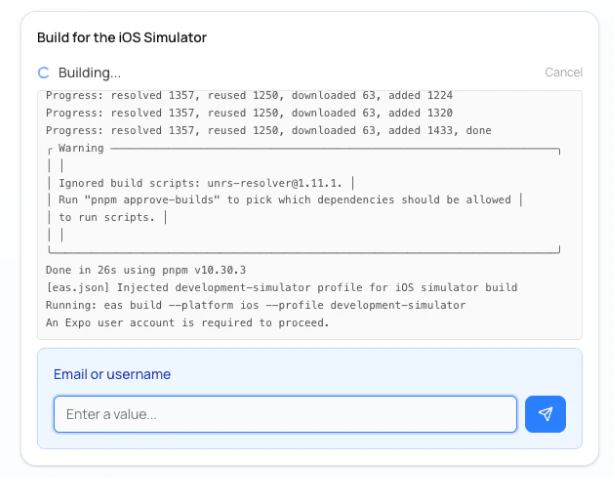 The simulator build takes a few minutes. Once it's done, your app will open in the simulator where you can test all native features including push notifications.
## Why Does This Happen?
The web preview runs your Expo app in a browser-based environment. Some packages – like **OneSignal (push notifications)** – rely on native iOS/Android APIs that don't exist in the browser. When these packages try to initialize, the web preview gets stuck.
Building for a native simulator creates a real native app that supports all native APIs, so everything works as expected.
This issue can also happen with other native-only packages. If your web preview is stuck and you've recently added a new package, try building for a native simulator to test your app.
## Changes don't show on device or TestFlight
This usually means you're looking at a different version of the app than the one your changes reached. Newly has three places your app can run – web preview, simulator, and TestFlight or the App Store – and they don't always update at the same time.
TestFlight uses the version of your app from your last build. Code changes don't reach TestFlight until you start a new build.
The full breakdown of which version contains what, and how to think about it: [Preview vs builds](/guides/preview-vs-builds).
For a different class of issue – a fresh QR scan in Expo Go is still showing an old version – try force-closing Expo Go on your device and re-scanning the QR code from a clean start.
## Still stuck?
If none of the above fixes the issue:
* **Ask the AI** to diagnose the problem – describe what you see and it can help debug.
* **Use the in-app support widget** to reach out to support without leaving your project.
* **Email us** at [support@newly.app](mailto:support@newly.app).
The simulator build takes a few minutes. Once it's done, your app will open in the simulator where you can test all native features including push notifications.
## Why Does This Happen?
The web preview runs your Expo app in a browser-based environment. Some packages – like **OneSignal (push notifications)** – rely on native iOS/Android APIs that don't exist in the browser. When these packages try to initialize, the web preview gets stuck.
Building for a native simulator creates a real native app that supports all native APIs, so everything works as expected.
This issue can also happen with other native-only packages. If your web preview is stuck and you've recently added a new package, try building for a native simulator to test your app.
## Changes don't show on device or TestFlight
This usually means you're looking at a different version of the app than the one your changes reached. Newly has three places your app can run – web preview, simulator, and TestFlight or the App Store – and they don't always update at the same time.
TestFlight uses the version of your app from your last build. Code changes don't reach TestFlight until you start a new build.
The full breakdown of which version contains what, and how to think about it: [Preview vs builds](/guides/preview-vs-builds).
For a different class of issue – a fresh QR scan in Expo Go is still showing an old version – try force-closing Expo Go on your device and re-scanning the QR code from a clean start.
## Still stuck?
If none of the above fixes the issue:
* **Ask the AI** to diagnose the problem – describe what you see and it can help debug.
* **Use the in-app support widget** to reach out to support without leaving your project.
* **Email us** at [support@newly.app](mailto:support@newly.app).