

OneSignal Integration
OneSignal lets you add push notifications to your Newly app. Connect with one click and the AI sets up the SDK, notification components, and a preferences screen for you. Supports both iOS and Android.What is OneSignal?
OneSignal is a push notification platform that handles delivery, user segmentation, engagement tracking, and rich notifications (images, buttons, deep links).Setting Up OneSignal
1
Open "More" in Newly and tap Push Notifications
Find the Push Notifications panel in the tool strip.
2
Press Connect OneSignal
Newly creates a OneSignal app and links it to your project automatically. No OneSignal account needed.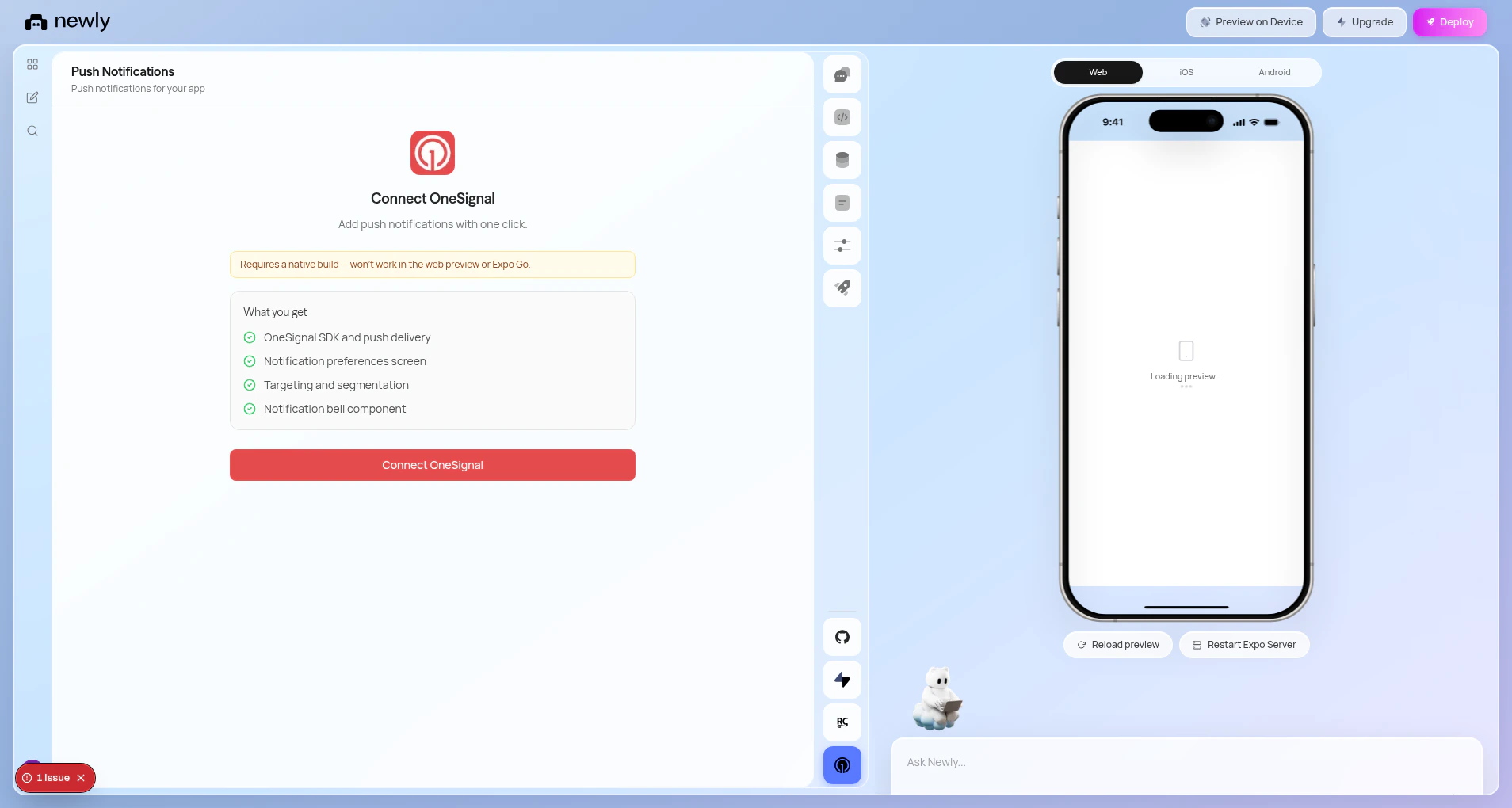
3
Configure platform credentials
Set up credentials for the platforms you want to support:
- iOS: If you’ve added Apple credentials in Newly, press Sync Apple credentials to OneSignal to configure APNs for iOS push delivery.
- Android: Upload your Firebase service account JSON and
google-services.jsonin the Push Notifications panel to enable FCM for Android push delivery. See Android Configuration for details.
4
Press "Add push notifications (AI)"
The AI will:
- Add
NotificationProviderto your app layout - Add a
NotificationBellcomponent to your home screen - Create a notification preferences screen
- Configure your bundle identifier
5
Build and test
Create a native build and press Send test notification to verify everything works.
What Gets Added to Your App
When you connect OneSignal and run the AI setup, three components are added:Sending Notifications
After setup, you can send notifications by asking the AI to set them up in your app logic. Newly manages the OneSignal connection for you.- From Your App
- Segments
- Test Notification
Ask the AI to trigger notifications based on events in your app:
Common Patterns
- Welcome Notification
- Activity Updates
- Promotional
iOS Configuration
iOS requires APNs (Apple Push Notification service) credentials to deliver notifications. You’ll need to set up your Apple credentials in Newly first.1
Set up Apple credentials
Open the Apple Credentials panel in Newly. You can either:
- Automatic (recommended): Sign in with your Apple ID and Newly handles the rest
- Manual: Upload your own
.p8APNs key file from the Apple Developer Portal
2
Sync to OneSignal
In the Push Notifications panel, press Sync Apple credentials to OneSignal. This sends your APNs credentials to OneSignal so it can deliver to iOS devices.
3
Verify
The panel will show APNs credentials detected when synced successfully.
Android Configuration
Android requires Firebase Cloud Messaging (FCM) credentials to deliver notifications. You’ll need a Firebase project linked to your app.1
Create a Firebase project
Go to the Firebase Console and create a project (or use an existing one). Add an Android app with your app’s package name.
2
Download your credentials
You need two files from Firebase:
- Service account JSON: Go to Project Settings → Service accounts → Generate new private key. This file lets OneSignal send notifications via FCM.
- google-services.json: Go to Project Settings → General → Your apps → Download google-services.json. This file configures your Android app to receive notifications.
3
Upload to Newly
In the Push Notifications panel, find the Android (FCM) section and upload both files.
4
Sync to OneSignal
Press Sync credentials to OneSignal to send your FCM credentials to OneSignal for Android push delivery.
5
Verify
The panel will show your Firebase project ID when configured successfully.
Testing Notifications
- Create a development build of your app (not Expo Go)
- Install on a physical device or simulator
- Accept the push notification permission prompt
- Go back to the Push Notifications panel in Newly
- Press Send test notification
Best Practices
Don't Spam
Only send notifications users care about. Too many and they’ll uninstall.
Personalize
Use segments and user data to send relevant messages
Respect Preferences
Let users control which notifications they receive
Time It Right
Schedule notifications for when users are most likely to engage
Troubleshooting
Notifications not arriving
Notifications not arriving
- Make sure you’re testing on a native build, not Expo Go or web preview
- Check that the device has notification permissions enabled
- iOS: Verify APNs credentials are synced in the Push Notifications panel
- Android: Verify FCM credentials are uploaded and synced
APNs not detected
APNs not detected
- Add your Apple credentials in the Apple Credentials panel first
- Then press Sync Apple credentials to OneSignal in the Push Notifications panel
- If it still fails, double check your APNs Auth Key, Key ID, and Team ID
FCM credentials not working
FCM credentials not working
- Make sure you uploaded both the service account JSON and google-services.json
- Re-download fresh files from the Firebase Console if in doubt
- Ensure the Firebase project has Cloud Messaging API enabled
Test notification sent but not received
Test notification sent but not received
- Make sure the app was opened at least once after installing the native build
- Check that the user accepted the notification permission prompt
- iOS: Ensure APNs credentials are synced
- Android: Ensure FCM credentials are uploaded and synced
- Try uninstalling and reinstalling the app, then send again
Build still uses my old bundle ID after I renamed it
Build still uses my old bundle ID after I renamed it
Bundle ID changes need two steps. Saving the new bundle ID in Apple Credentials updates your project and
app.json, but it doesn’t automatically push the new value to OneSignal’s APNs config. To finish the update:- More → Push Notifications, then click Configure platforms. This pushes the current bundle ID to OneSignal’s APNs platform config.
Resources
OneSignal Docs
Official OneSignal documentation
Push Notification Guide
Best practices for push notifications
Next Steps
Deployment
Deploy your app with push notifications
RevenueCat
Add in-app purchases and subscriptions