

Preview troubleshooting
Most preview issues fall into one of these patterns. Pick the section that matches what you’re seeing.- Web preview stuck on “Loading preview…” → Web preview stuck
- Code changes don’t show up on a real device or in TestFlight → Changes don’t show on device or TestFlight
Web preview stuck on “Loading preview…”
If your web preview is stuck on “Loading preview…” and never loads, it’s likely because your app uses a native-only package like OneSignal (push notifications) that doesn’t work in the browser-based web preview.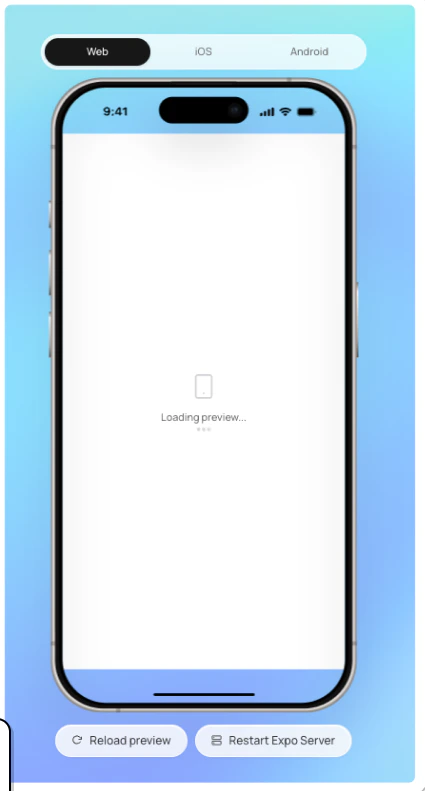
How to Fix It
1
Switch to the iOS or Android tab
Click the iOS or Android tab at the top of the preview panel. You’ll see a Build simulator button at the bottom.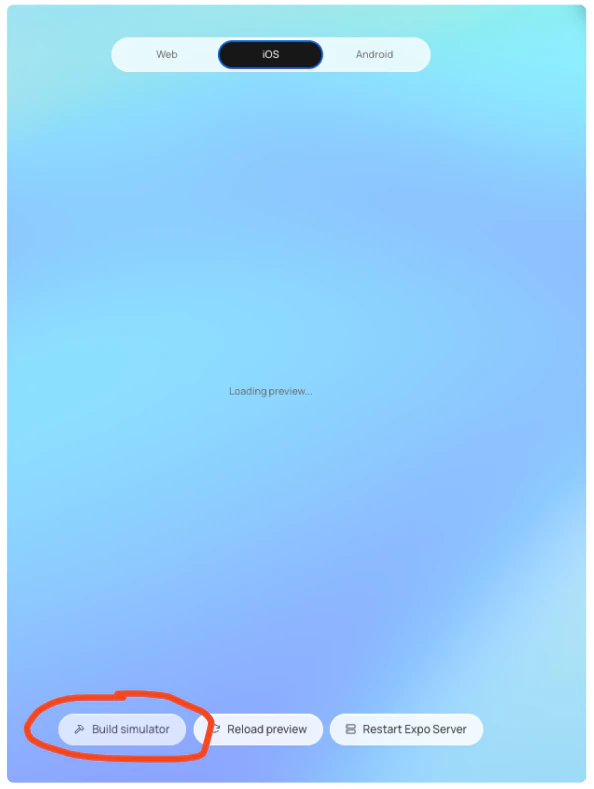
2
Start the simulator build
Click Build simulator. In the Deploy panel that opens, make sure Simulator is selected, then click Build simulator.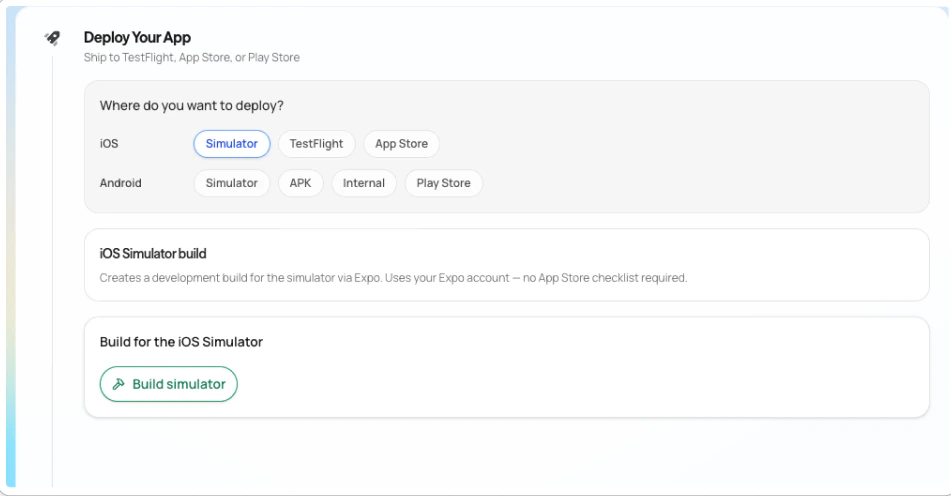
3
Create an Expo account
The build process requires an Expo account. When prompted for your email or username, create a free account at expo.dev and enter your credentials.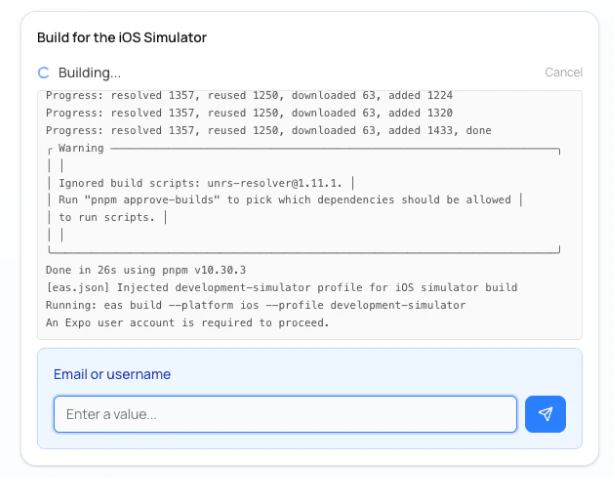
4
Wait for the build to complete
The simulator build takes a few minutes. Once it’s done, your app will open in the simulator where you can test all native features including push notifications.
Why Does This Happen?
The web preview runs your Expo app in a browser-based environment. Some packages – like OneSignal (push notifications) – rely on native iOS/Android APIs that don’t exist in the browser. When these packages try to initialize, the web preview gets stuck. Building for a native simulator creates a real native app that supports all native APIs, so everything works as expected.Changes don’t show on device or TestFlight
This usually means you’re looking at a different version of the app than the one your changes reached. Newly has three places your app can run – web preview, simulator, and TestFlight or the App Store – and they don’t always update at the same time. TestFlight uses the version of your app from your last build. Code changes don’t reach TestFlight until you start a new build. The full breakdown of which version contains what, and how to think about it: Preview vs builds. For a different class of issue – a fresh QR scan in Expo Go is still showing an old version – try force-closing Expo Go on your device and re-scanning the QR code from a clean start.Still stuck?
If none of the above fixes the issue:- Ask the AI to diagnose the problem – describe what you see and it can help debug.
- Use the in-app support widget to reach out to support without leaving your project.
- Email us at support@newly.app.