You’re reading the docs for Newly v1 (legacy), the classic newly.app builder. Using app.newly.app or Newly for Mac? Go to the Newly v2 docs. Credits, pricing and features differ between the two. Quick answer
Stop using single, massive prompts to build the entire app. Break your work into logical steps, send screenshots of specific errors, and use Ask mode when you only need a question answered. When something breaks, the Restore button is almost always faster than another fix prompt.
Check your credit usage
- Go to newly.app/pricing.
- Click the Usage tab to see your remaining credits for the month.
If you run out before your next renewal, you can buy a one-time top-up from the same page without changing your plan.
Best practices for prompting
- Iterate step by step. The ideal workflow is Prompt → Review App → Feedback Prompt → Review App. Don’t paste a giant list of requirements into a single prompt.
- Be specific. Avoid abstract commands like “fix the app” or “make things good”. Describe the exact user flow, the desired steps, and the expected outcome.
- Use screenshots for errors. If you hit a build error or a visual bug, take a screenshot, upload it to the chat, and explain how you want it to look or function.
Mac: Press Shift + Control + Command + 4, then drag to select an area. The screenshot is copied to your clipboard, ready to paste with Command + V.
Windows: Press Windows + Shift + S to open Snipping Tool. Choose rectangular, freeform, window, or fullscreen mode, then make your selection. The screenshot is copied to your clipboard, ready to paste with Ctrl + V.
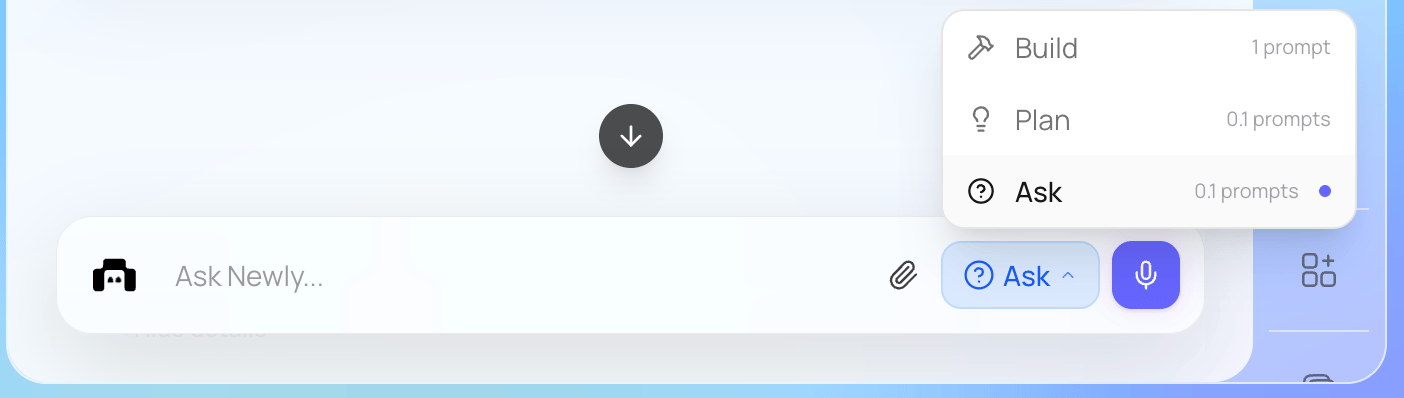
- Use Ask mode for questions. If you’re asking a question rather than requesting a code change, click the build dropdown and select Ask mode. This costs 10x fewer credits than a standard build request.
- Read prompts before sending. If you’re copy-pasting from ChatGPT or another LLM, skim it first. It’s easy to send something off-target and burn a credit on a wrong direction.
Restore is your fastest way back to a working version
If something was working an hour ago and the AI broke it on a recent prompt, don’t try to fix it forward with more prompts. The Restore button next to any chat message rolls your project back to that exact point, including dependencies and project state.
Restoring is almost always faster than trying to repair the broken state. It also costs zero credits.
Restoring from chat history is more reliable than copy-pasting code from a downloaded ZIP. The chat history Restore preserves dependency versions and project state alongside your code. A ZIP only contains the files.
Diagnose first, then fix
When the AI is bouncing between attempts and not converging on a fix, it usually means the prompt asked it to change something before it had inspected what’s actually broken. A prompt that explicitly asks the AI to read and report first, then propose a change, tends to land in one round instead of three.
Template:
This pattern works especially well for:
- Bugs where the AI has tried 3+ fixes and none stick.
- Backend API issues where the actual error message is more useful than a guess.
- File-structure questions (“does this file exist”, “is this function defined here”).
For a stuck build specifically
If a build is stuck at “1 issue blocking” or similar, broad prompts like “fix the build” rarely work. Use this:
The last sentence is the one that matters most. It stops the AI from defaulting to “this must be a Newly platform problem” when it hasn’t actually looked at the log.
- Using logs to debug – how to read build and runtime logs in your project.
- Recommended dev loop – building on Android by default cuts down on iOS-pipeline issues that often look like “the AI broke it”.