

Quick answer
The fix is straightforward. Copy the relevant log, paste it into chat with one line about what you were doing, and that’s it. The AI gets the real error message, stack trace, or failing request, and you skip three rounds of “can you describe what you’re seeing.”The 3 types of logs in Newly
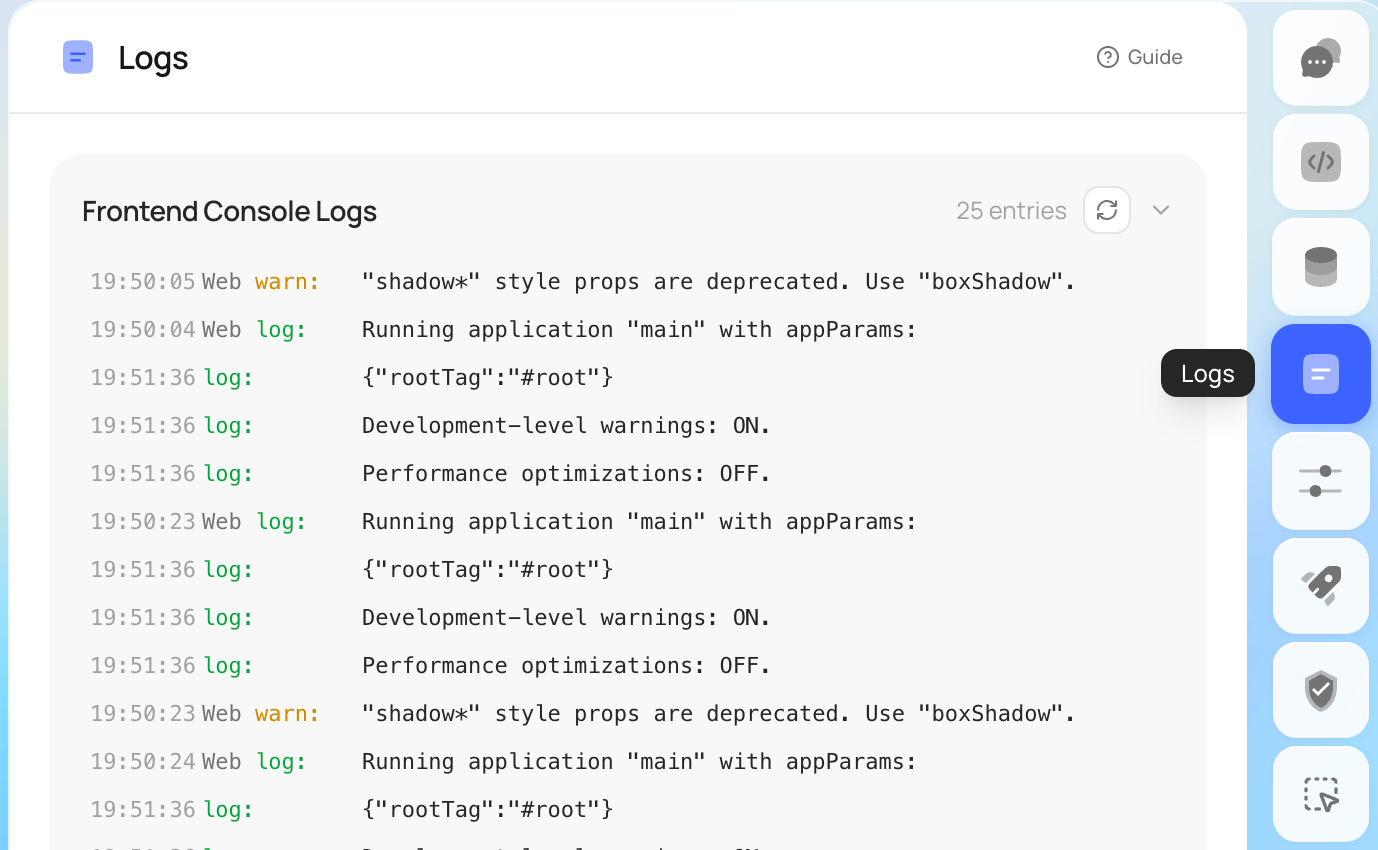
Newly provides three different log types, each useful for a different class of problem. Knowing which one to grab will save you prompts and time.1. Frontend logs
Runtime logs from your app in the preview: JavaScript errors, failed network calls from the client, missing imports, render warnings,console.log output, all of it.
Use these when:
- The app loads but a screen is broken, blank, or shows a red error overlay.
- A button does nothing when tapped.
- You see “Something went wrong” or a JavaScript runtime error.
- Data isn’t displaying even though the backend looks fine.
2. Backend logs (Specular - Liquid Backend)
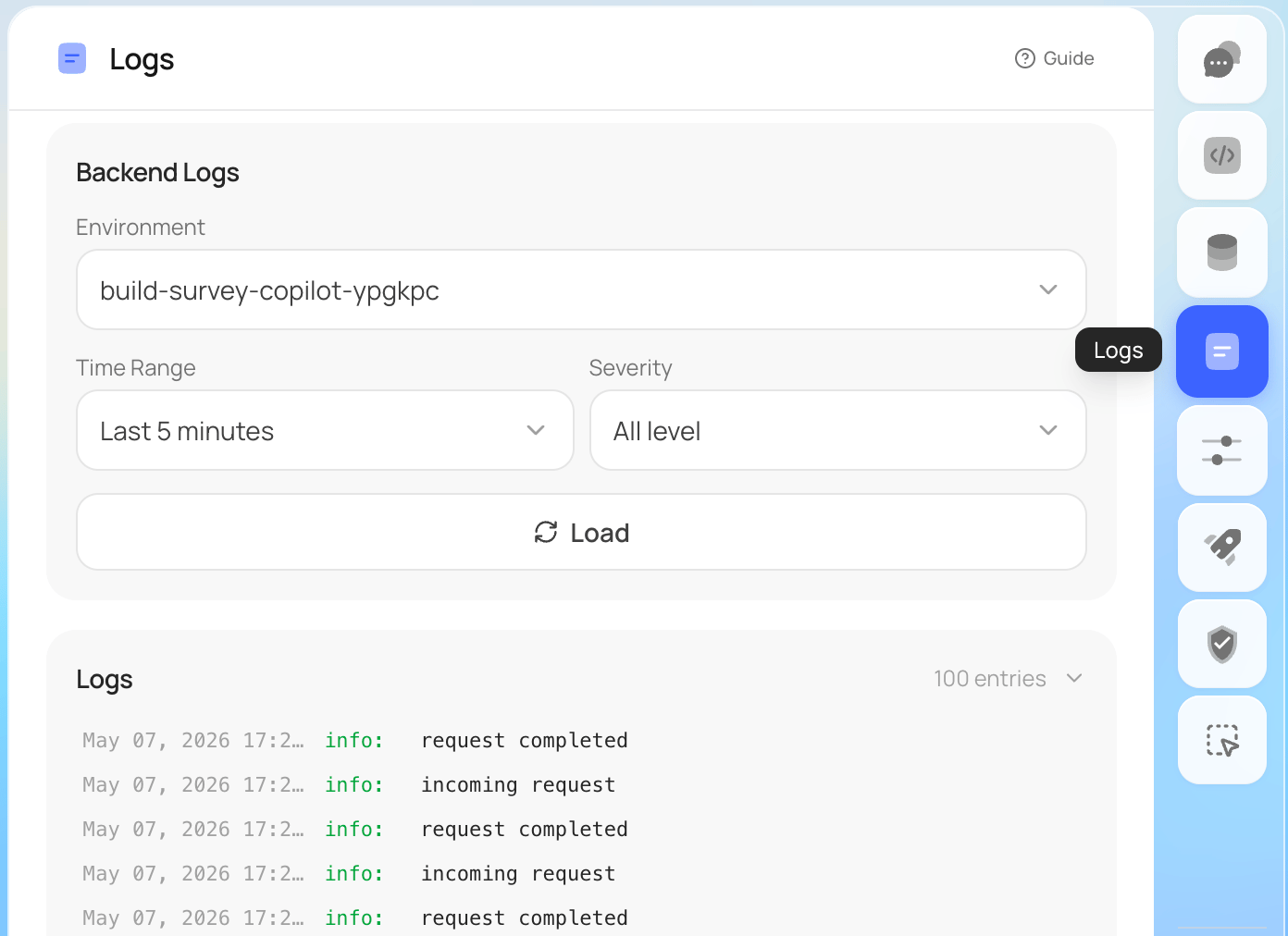
Server-side logs from your backend functions and database calls. Newly pulls these from Specular, so you can see what actually happened on the server: failed queries, validation errors, auth failures, any unhandled exceptions. Use these when:- A request from the app fails or returns a 4xx/5xx error.
- Data isn’t being saved or returned correctly.
- Login, signup, or any auth flow is broken.
- The frontend looks fine but something “isn’t working” end-to-end.
3. Build logs (Deploy)
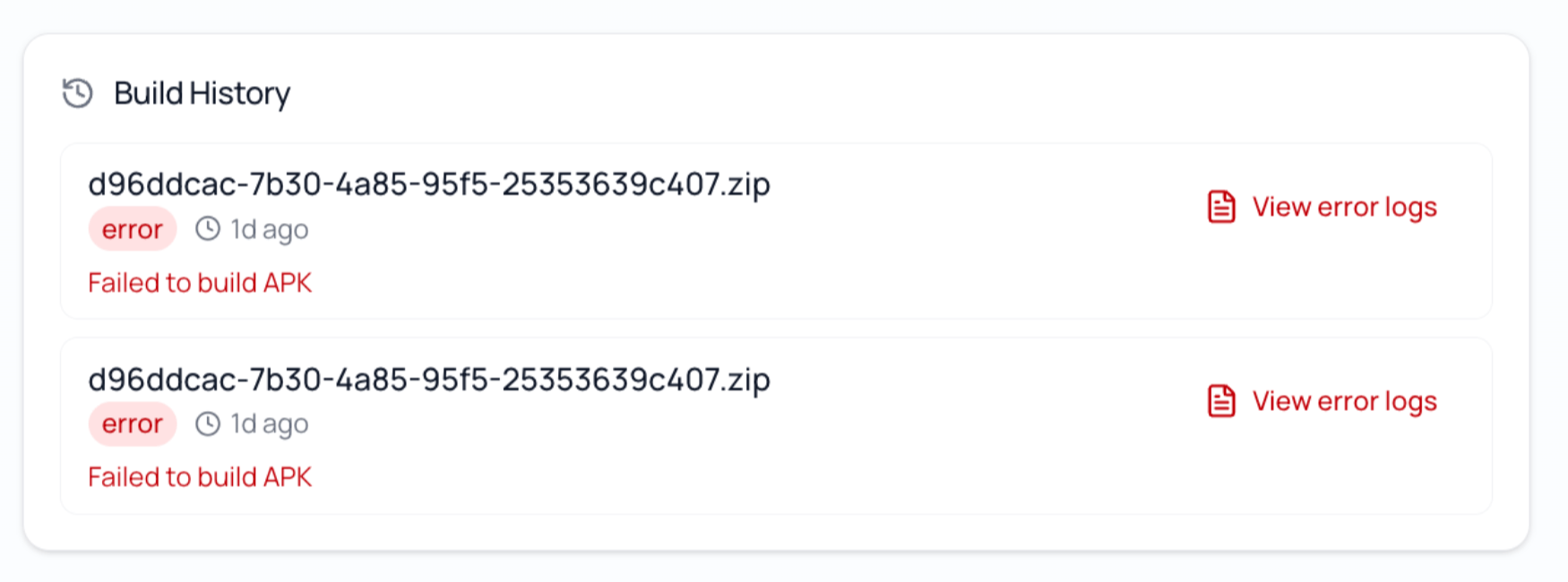
Pipeline output from a failed Android or iOS build. Dependency resolution errors, native module issues, gradle failures, missing config, invalid app metadata. Use these when:- Your app build fails and you see an error on the build status screen.
- A previously working build suddenly stops compiling after a change.
- You added a new package or native dependency and the build broke.
Steps to fix an issue using logs
- Reproduce the problem in the preview (or trigger the failing build).
- Open the relevant log panel for that problem (frontend, backend, or build).
- Copy the error message and a few lines of surrounding context – not the entire log file.
- Paste it into the chat with a one-line description of what you were trying to do.
- Let the AI propose a fix, then verify in the preview or with a new build.
Best practices for prompting with logs
- Match the log type to the problem: A blank screen is almost always frontend. A 500 from a saved record is backend. “Build failed” is build. Grab the wrong one and you’ve wasted a prompt.
- Copy the error, not the entire log: Logs can run thousands of lines. The AI only needs the actual error, the stack trace, and a bit of surrounding context. Everything else dilutes the signal and sometimes actively confuses the model.
- Include what you were doing: “I tapped the Save button on the profile screen and got this error” is far more useful than just dumping a stack trace. The AI needs to know which user action triggered the log.
- Combine logs with screenshots when relevant: If a screen looks wrong AND throws an error, paste both. The screenshot shows the symptom, the log shows the cause.
- For build failures, include the failing step: For build failures, scroll until you hit a line that says
FAILEDorerror:and paste from there. and start there. Nobody needs the steps that succeeded. - Use Ask mode if you just want an explanation: It costs about a tenth of a build request and is perfect for “what does this even mean.”
- Don’t paste secrets: Logs sometimes carry API keys, tokens, or user data. Skim before you send.
- If the same error keeps appearing, use Restore: When the AI’s fix attempts are making things worse, click Restore on a known-good message and try again with cleaner context. That’s almost always cheaper than prompting your way out of a broken state.
Example: a good log-based prompt
I’m getting an error when I tap “Submit” on the signup form. The user isn’t created and the screen just freezes. Frontend log:That’s the user action, the client-side symptom, the server-side root cause, and the behavior you want. Usually enough to land a fix in one shot.Backend log (Specular):Please fix the signup so it shows a friendly “email already in use” message instead of crashing.